How to Clear Clipboard on PC and Laptop

Have you ever copied a password, a private message, or an important piece of information on your computer and wondered how to remove it from your clipboard? Knowing how to clear clipboard data is a useful skill for managing copied content and protecting your privacy.
A clipboard is a temporary storage area on your PC or laptop that holds information you copy or cut. It allows you to transfer text, images, links, and other content between applications without having to type or recreate everything manually.
However, copied information may remain accessible through clipboard history or clipboard management tools. This can become a concern when you copy sensitive information, use a shared computer, or want to keep your clipboard organized.
Fortunately, clearing clipboard data is usually straightforward.
In this guide, you will learn how to clear clipboard on a PC or laptop, remove individual clipboard items, manage clipboard history, and troubleshoot common clipboard problems.
What Is a Clipboard on a PC or Laptop?
A clipboard is a temporary storage feature that allows your computer to store copied or cut content.
For example, when you select a paragraph and press Ctrl + C, the selected text is copied. You can then paste it into another application by pressing Ctrl + V.
A clipboard can contain different types of information, including:
- Text and paragraphs
- Website URLs
- Images and screenshots
- Email addresses
- Document content
- Other copied information
Many computers also support clipboard history, which allows users to access multiple previously copied items.
This feature can make everyday computer tasks easier, but it may also keep information you no longer need.
Understanding how your computer handles clipboard data can help you manage it more effectively.
How to Clear Clipboard on a PC
If you want to clear clipboard data on your computer, you can use the built-in clipboard management features.
Method 1: Clear Clipboard History Using a Keyboard Shortcut
One of the quickest ways to manage clipboard history on a Windows-based PC is through the clipboard history shortcut.
Follow these steps:
- Press Windows + V on your keyboard.
- The clipboard history panel will appear.
- Locate the Clear all option.
- Click Clear all.
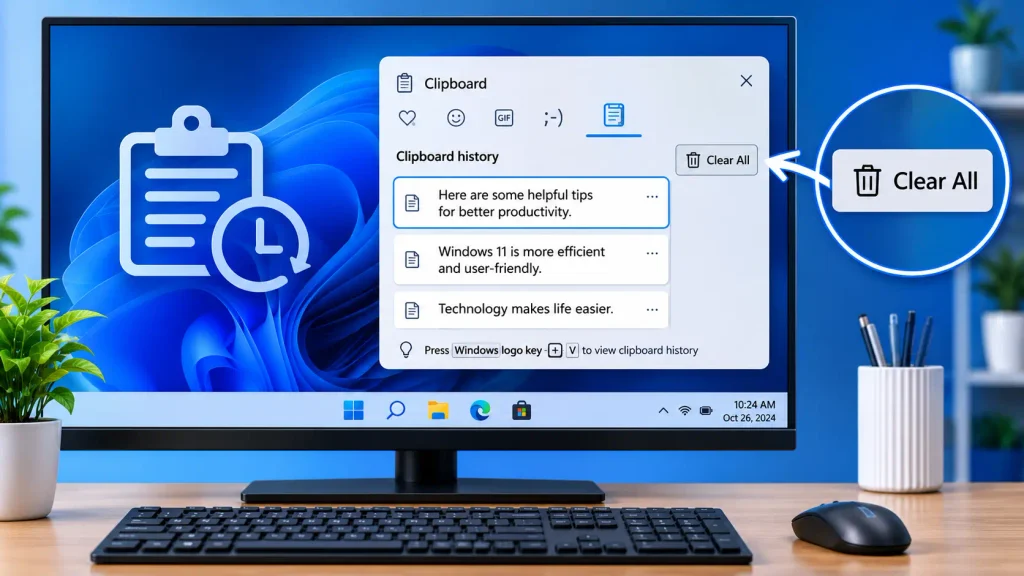
This removes available unpinned clipboard history entries.
If clipboard history is not enabled, your computer may display an option to turn it on.
Method 2: Clear Clipboard Through Computer Settings
You can also clear clipboard history through your computer’s settings.
- Press Windows + I to open Settings.
- Navigate to the System section.
- Open Clipboard settings.
- Find the Clear clipboard data option.
- Click Clear.
Your computer will remove the available unpinned clipboard history items.
The exact location and wording of the settings may vary depending on your operating system and system configuration.
Method 3: Delete a Specific Clipboard Item
Sometimes you may want to remove a single copied item instead of clearing your entire clipboard history.
For example, you may have copied a private message but still want to keep other useful clipboard entries.
To remove a specific item:
- Open the clipboard history panel.
- Locate the item you want to delete.
- Click the menu beside the item.
- Select Delete.
This allows you to manage clipboard history without removing every saved entry.
Important: Pinned clipboard items may remain after clearing history. Remove pinned items separately if you want to delete them.
How to Clear Clipboard on a Laptop
Clearing clipboard data on a laptop is generally similar to clearing it on a desktop computer.
The process usually depends on the operating system and clipboard management features rather than the laptop’s manufacturer.
Clear Clipboard Using the Keyboard
- Open the clipboard history panel using the available keyboard shortcut.
- Find the Clear all option.
- Select it to remove available unpinned entries.
Clear Clipboard Through Settings
- Open your laptop’s Settings application.
- Navigate to the system settings.
- Find the clipboard management section.
- Select the option to clear clipboard data.
These methods can be used on many laptops from manufacturers such as Dell, HP, Lenovo, ASUS, Acer, and MSI.
The available features may vary depending on the operating system installed on your laptop.
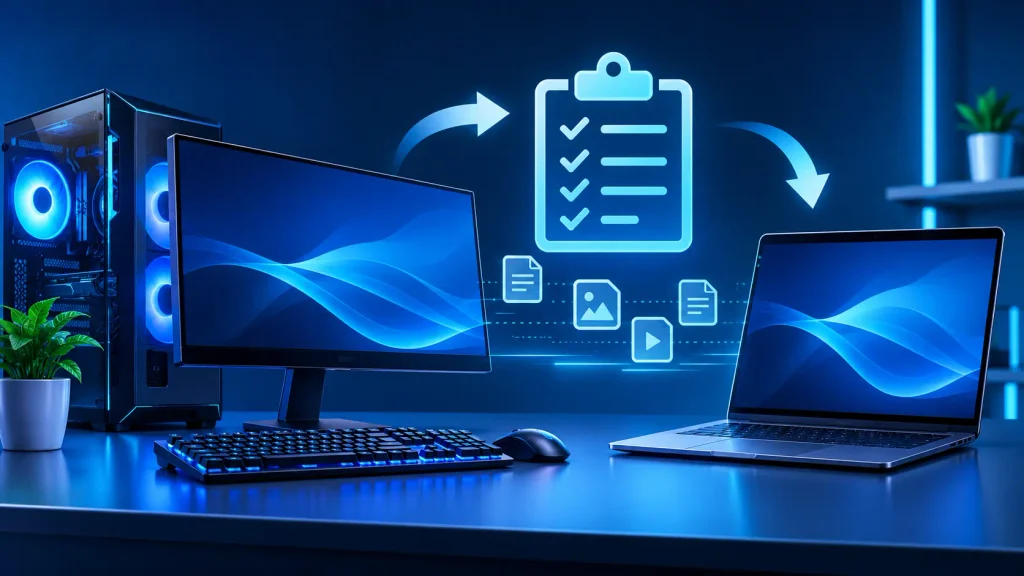
How to Remove Copied Text From a PC Clipboard
If your computer does not provide an easy way to clear the clipboard, replacing the current copied content may be a useful alternative.
For example, you can copy a harmless word instead of leaving sensitive information in the current clipboard.
Follow these steps:
- Open a text editor or document.
- Type a harmless word, such as “Hello.”
- Select the word.
- Press Ctrl + C.
The new copied text replaces the current clipboard content.
However, this method does not necessarily remove previously saved clipboard history entries.
If your computer maintains a clipboard history, you should clear that history separately.
How to Clear Clipboard Using PowerShell
Some PC users prefer using command-line tools to manage computer functions.
PowerShell can be used to replace the current clipboard content.
Steps to Clear the Current Clipboard Content
- Open the Start menu.
- Search for PowerShell.
- Open the application.
- Enter the following command:
Set-Clipboard -Value $null- Press Enter.
This command replaces the current clipboard content with an empty value.
Important: This command does not clear the complete clipboard history. Previously saved clipboard entries may remain accessible.
Use your computer’s clipboard history management options if you want to remove multiple saved items.
How to Clear Clipboard History on a Computer
Clipboard history allows users to access previously copied content.
Although it is convenient, old clipboard entries may contain unnecessary information.
To clear clipboard history:
- Open your computer’s clipboard history panel.
- Find the Clear all option.
- Select Clear all.
- Review any pinned entries separately.
This helps remove unwanted clipboard history items.
How to Disable Clipboard History
If you do not want your computer to maintain clipboard history, you can disable the feature where supported.
- Open your computer’s Settings.
- Navigate to the clipboard management section.
- Locate the clipboard history option.
- Turn off clipboard history.
Disabling clipboard history can reduce the number of previously copied items saved for later access.
However, it does not necessarily remove content stored by third-party clipboard manager applications.
Why Should You Clear Clipboard Data?
Clearing clipboard data can be helpful for several reasons.
1. Protect Your Privacy
Your clipboard may contain private messages, personal information, or confidential text.
Removing unwanted clipboard entries can help reduce the risk of someone accessing information you previously copied.
2. Remove Sensitive Information
If you copied a password, account detail, or confidential message, clearing or replacing the copied content can be a useful precaution.
Remember that clipboard clearing does not delete the original information from the application where it came from.
3. Keep Clipboard History Organized
Clipboard history can become cluttered with old text, links, and images.
Removing unnecessary entries can make it easier to manage the information you actually need.
4. Improve Security on Shared Computers
If you use an office workstation, shared PC, or public computer, clearing clipboard data after handling sensitive information is a useful privacy habit.
5. Prevent Accidental Pasting
An outdated clipboard entry may accidentally be pasted into an email, document, or message.
Managing clipboard history can help reduce this possibility.
Clipboard Clearing Methods: Quick Comparison
| Method | Purpose |
|---|---|
| Clipboard history panel | Clear saved clipboard entries |
| Computer settings | Manage and clear clipboard data |
| Delete individual item | Remove a specific copied entry |
| Copy new harmless text | Replace the current clipboard content |
| PowerShell command | Replace current clipboard content |
| Disable clipboard history | Stop maintaining clipboard history |
The available options depend on your computer’s operating system and installed clipboard tools.
Common Clipboard Problems and Their Solutions
Sometimes users experience problems when trying to clear clipboard data.
Here are a few common issues and possible solutions.
Clipboard History Is Not Opening
Try opening the clipboard history panel using the available keyboard shortcut.
If clipboard history is disabled, enable it through your computer’s clipboard settings.
Clipboard Items Are Still Appearing
Some clipboard items may be pinned.
Open the clipboard history panel and manually remove pinned entries that you no longer need.
Clipboard Data Is Not Clearing
If clipboard history does not clear correctly:
- Open your computer’s clipboard settings.
- Check whether clipboard history is enabled.
- Use the available Clear option.
- Reopen the clipboard history panel.
- Check for pinned items.
Clipboard Data Appears on Another Device
Some computers support clipboard synchronization across connected devices.
If synchronization is enabled, copied content may be shared between compatible devices.
Review your clipboard synchronization settings and disable syncing if you do not want copied information shared across devices.
Third-Party Clipboard Managers Still Show Old Items
Some clipboard manager applications maintain their own databases.
Open the clipboard management application and look for options such as Clear History, Delete All, or Remove Saved Items.
Clearing the standard computer clipboard may not remove content stored separately by these applications.
Frequently Asked Questions
How do I clear clipboard quickly on a PC?
Open the clipboard history panel and select Clear all. This removes available unpinned clipboard history entries.
How do I clear clipboard on a laptop?
Open your laptop’s clipboard management feature and select the available Clear option. The exact steps depend on the operating system.
Does clearing clipboard history delete everything?
Clearing clipboard history generally removes unpinned entries. Pinned items and content stored in third-party clipboard managers may remain.
Can I clear clipboard without restarting my computer?
Yes. You can use the clipboard history panel or computer settings to clear clipboard data without restarting your PC or laptop.
Does copying new text clear the clipboard?
Copying new text replaces the current clipboard content. However, it does not necessarily remove previously saved clipboard history entries.
Is clearing clipboard data important for privacy?
Yes. Clearing copied sensitive information can be a useful privacy precaution, particularly when using shared computers.
Can I clear clipboard using PowerShell?
PowerShell can replace the current clipboard content using the Set-Clipboard command. However, this does not necessarily clear the complete clipboard history.
Why does my clipboard still contain old information?
Your computer may maintain clipboard history, pinned entries, or saved data through a third-party clipboard manager. Check these features separately.
Conclusion
Knowing how to clear clipboard on a PC or laptop is a useful skill for managing copied information and protecting your privacy.
You can use your computer’s clipboard history panel, system settings, or other supported management tools to remove unwanted clipboard data.
Replacing the current clipboard content can also be helpful when you only need to remove the most recently copied information.
If you regularly copy passwords, private messages, or confidential data, make clipboard management part of your everyday computer routine.
By keeping your clipboard organized, you can reduce unnecessary saved information and make your PC or laptop usage more secure.
Vertical Stack Ceiling Clearance Calculator | Monitor Stack Height Tool
Under-Desk Mount Torque Calculator | PC Mount Load Checker
Desk Boundary Bass Gain Estimator | Speaker Boominess Calculator
Speaker Placement Calculator | Near-Field Toe-In Angle Tool
Keyboard Footprint Savings Calculator | 60% vs TKL vs Full-Size
Mousepad Size Calculator | DPI & Sensitivity Fit Checker
Mic Arm Boom Reach Calculator | Clamp Depth & Fit Checker
Mini-ITX Case Volume Comparison Tool | Compare Case Sizes
Case Airflow Calculator | Fan CFM & Air Changes Per Minute Tool
SFF PSU Wattage Calculator | Small Form Factor Power Supply Sizing
CPU Cooler Height Clearance Calculator | Case Fit Checker
GPU Length Clearance Checker | Mini-ITX Case Compatibility Tool
Cable Management Length Estimator | Desk Cable Calculator
Standing Desk Height Calculator | Ergonomic Sit-Stand Tool
Monitor Arm Weight Compatibility Checker
Desk Depth Compatibility Checker | Small Desk Gear Fit Tool
Desk Weight Capacity Calculator | Load & Mounting Estimator
Multi-Monitor Bezel Offset Calculator | Triple Monitor FOV Tool
Stacked Monitor Clearance Calculator | Vertical Arm Fit Checker
Monitor Arm Clamp Depth Checker (Desk Compatibility)
Monitor Viewing Distance Calculator | Monitor PPI Calculator