
M.2 SSD: Complete Guide to Types, Speed, Compatibility, and Installation
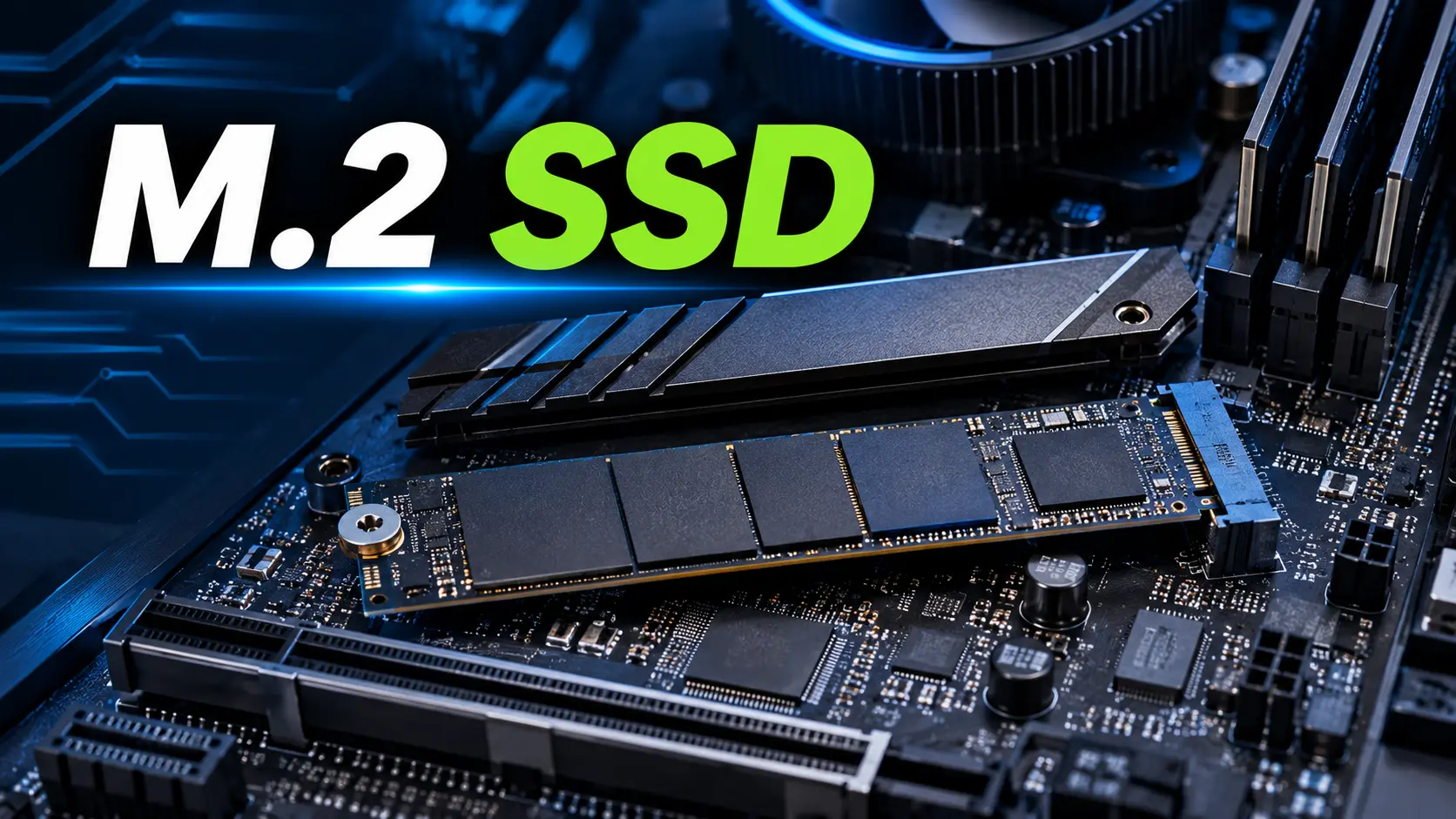
An M.2 SSD is one of the most popular storage solutions for modern desktop PCs and laptops. It offers a compact design, fast data transfer capabilities, and a convenient installation method that makes it an excellent choice for computer users who want to improve storage performance.
Whether you are building a gaming PC, upgrading an existing desktop, or looking for additional storage for your laptop, an M.2 SSD can provide a practical solution. These drives are available in different capacities, interfaces, and performance levels, allowing users to select a storage device that matches their requirements.
However, choosing an M.2 SSD can be confusing because not every M.2 drive uses the same technology. Some M.2 SSDs use the SATA interface, while others use PCIe with the NVMe protocol. Understanding these differences is essential before purchasing a new drive.
In this guide, we will explain what an M.2 SSD is, how it works, its different types, performance benefits, compatibility requirements, installation process, and how to choose the right M.2 SSD for your PC or laptop.
What Is an M.2 SSD?
An M.2 SSD is a compact solid-state drive designed to connect directly to an M.2 slot on a computer’s motherboard.
Unlike traditional 2.5-inch SSDs, M.2 SSDs are shaped like small circuit boards. They usually connect directly to the motherboard without requiring separate SATA data and power cables.
M.2 is a physical form factor specification. It describes the shape, dimensions, and connector design of the device. It does not automatically mean that the SSD uses NVMe technology or provides a particular speed.
M.2 SSDs can use different interfaces and protocols, including SATA and PCIe-based NVMe. The exact capabilities depend on the SSD and the computer’s hardware support.
M.2 SSDs are commonly used in:
- Desktop gaming PCs
- Office computers
- Workstations
- Modern laptops
- Compact PC builds
- High-performance computing systems
Their small size and direct motherboard connection make them a popular choice for computer storage.
How Does an M.2 SSD Work?
An M.2 SSD stores data using NAND flash memory. Unlike traditional hard drives, it does not contain moving mechanical parts.
When you save a file, install software, or access stored data, the SSD’s controller manages the process of reading and writing information to its flash memory.
The drive communicates with the computer through a compatible interface.
An M.2 SATA SSD uses the SATA interface, while an M.2 NVMe SSD generally uses PCIe lanes and the NVMe protocol.
PCIe-based NVMe SSDs can provide much higher bandwidth and lower latency than SATA-based storage, depending on the supported PCIe generation and drive design.
This technology helps improve tasks such as:
- Operating system startup
- Application loading
- File transfers
- Game loading
- Large project access
- Data-intensive workloads
Actual performance depends on the SSD model, capacity, interface, workload, and computer hardware.
Types of M.2 SSDs
There are two major categories of M.2 SSDs commonly used in PCs and laptops.
1. M.2 SATA SSD
An M.2 SATA SSD uses the SATA interface, similar to a traditional 2.5-inch SATA SSD.
It provides the compact physical design of an M.2 drive but remains limited by SATA bandwidth.
The theoretical maximum bandwidth of SATA III is 6 Gbit/s, while actual SSD transfer speeds are lower due to protocol overhead and other factors.
M.2 SATA SSDs can be suitable for everyday computing, office tasks, and storage upgrades.
Benefits of M.2 SATA SSDs:
- Compact design
- No separate SATA cables
- Suitable for everyday computer use
- Can provide a storage upgrade over a hard drive
- Often useful for older systems with compatible M.2 SATA support
One important limitation is that an M.2 SATA SSD will not work in every M.2 slot. The motherboard or laptop must specifically support SATA-based M.2 storage.
2. M.2 NVMe SSD
An M.2 NVMe SSD uses the PCIe interface and the NVMe protocol.
NVMe was designed for solid-state storage and can take advantage of PCIe bandwidth to deliver high performance.
Depending on the drive and PCIe generation, M.2 NVMe SSDs can offer significantly faster sequential read and write speeds than SATA SSDs.
For example, many PCIe Gen 3 NVMe drives advertise sequential speeds around 3,000–3,500 MB/s, while compatible PCIe Gen 4 drives may offer speeds around 7,000 MB/s or higher.
Some PCIe Gen 5 SSDs advertise even higher sequential performance, although actual results depend on the model and workload.
Benefits of M.2 NVMe SSDs:
- High data transfer speeds
- Low storage access latency
- Compact design
- Suitable for gaming and demanding workloads
- Convenient motherboard installation
- Available in various capacities
For a new gaming PC or high-performance desktop build, a compatible M.2 NVMe SSD is often a practical storage choice.
M.2 SSD vs SATA SSD
An M.2 SSD and a SATA SSD are not necessarily different technologies.
M.2 describes a form factor, while SATA describes an interface. An M.2 SSD may use SATA or PCIe-based NVMe, and a SATA SSD may use either the M.2 or 2.5-inch form factor.
The following table compares a typical 2.5-inch SATA SSD with an M.2 NVMe SSD.
| Feature | 2.5-Inch SATA SSD | M.2 NVMe SSD |
|---|---|---|
| Form Factor | 2.5-inch | M.2 module |
| Interface | SATA | PCIe |
| Protocol | AHCI | NVMe |
| Typical Maximum Interface Bandwidth | 6 Gbit/s SATA III | Depends on PCIe generation and lane count |
| Installation | SATA data and power cables | Direct motherboard slot |
| Performance | Lower bandwidth | Higher potential bandwidth |
| Best For | Basic storage upgrades | Gaming and demanding workloads |
An M.2 SATA SSD and a 2.5-inch SATA SSD may provide similar performance because they use the same SATA interface.
The main performance advantage comes from using PCIe-based NVMe storage rather than simply choosing the M.2 form factor.
M.2 SSD vs NVMe SSD: What Is the Difference?
Many users search for M.2 SSD and NVMe SSD as if they are the same thing. However, they describe different aspects of storage technology.
M.2 refers to the physical form factor and connector design.
NVMe refers to a storage protocol designed to operate over PCIe.
An SSD can use the M.2 form factor and SATA interface, or it can use M.2 with PCIe and NVMe.
For example:
- M.2 SATA SSD: Compact M.2 drive using SATA
- M.2 NVMe SSD: Compact M.2 drive using PCIe and NVMe
Understanding this difference is important because an M.2 slot does not automatically support every M.2 SSD.
Always check the motherboard or laptop specifications before purchasing a drive.
M.2 SSD Sizes Explained
M.2 SSDs are available in different physical lengths.
The most common dimensions are:
| M.2 Size | Width | Length | Common Usage |
|---|---|---|---|
| 2230 | 22 mm | 30 mm | Compact devices and some laptops |
| 2242 | 22 mm | 42 mm | Small laptops and compact systems |
| 2260 | 22 mm | 60 mm | Some desktop and laptop systems |
| 2280 | 22 mm | 80 mm | Common desktop PCs and laptops |
| 22110 | 22 mm | 110 mm | Certain workstations and specialized systems |
The numbers represent the drive’s width and length. For example, an M.2 2280 SSD is approximately 22 mm wide and 80 mm long.
M.2 2280 is one of the most common sizes for consumer desktop PCs and laptops.
However, not every computer supports every length. Some laptops have limited space for shorter M.2 drives, while motherboard slots may provide mounting positions for multiple lengths.
Before buying an SSD, confirm the supported physical size.
M.2 SSD Key Types Explained
M.2 SSDs use connector notches known as keys. These notches help identify the supported connector configuration.
Common SSD key types include:
B-Key
B-key connectors can support SATA and certain PCIe configurations, depending on the device.
M-Key
M-key connectors are commonly used by PCIe x4 NVMe SSDs.
B+M-Key
Some SSDs use both B and M notches. These drives may support different interface configurations depending on their design.
However, connector shape alone does not guarantee compatibility.
The SSD must also use an interface and protocol supported by the motherboard’s M.2 slot.
For example, a SATA M.2 SSD may physically fit a slot but fail to operate if that slot supports only PCIe NVMe storage.
Always verify the exact motherboard specification.
Benefits of Using an M.2 SSD in a PC or Laptop
1. Faster Boot Times
An M.2 NVMe SSD can help reduce operating system startup time compared with a traditional hard drive.
The exact improvement depends on the computer’s configuration and software environment.
2. Faster Application Loading
Applications stored on an SSD can often load more quickly than applications stored on a mechanical hard drive.
This can improve everyday computing responsiveness.
3. Improved Gaming Experience
An NVMe SSD can reduce loading times in games that benefit from fast storage.
However, an SSD does not directly increase graphics performance or FPS in most games. Gaming performance is also influenced by the processor, graphics card, memory, and game settings.
4. Compact Design
M.2 SSDs take up very little physical space inside a PC.
This is particularly useful for compact desktop builds and laptops where internal space is limited.
5. Cable-Free Installation
An M.2 SSD connects directly to the motherboard.
Unlike a traditional 2.5-inch SATA SSD, it generally does not require separate data and power cables.
This can simplify installation and improve cable management.
6. More Storage Capacity
M.2 SSDs are available in different storage capacities, including 256GB, 512GB, 1TB, 2TB, and larger options.
The right capacity depends on your applications, games, files, and storage requirements.
How to Choose the Best M.2 SSD
Choosing an M.2 SSD requires considering several important factors.
1. Storage Capacity
Storage capacity should match your intended workload.
| Capacity | Best For |
|---|---|
| 256GB | Basic computing and limited storage needs |
| 512GB | Everyday computing and moderate applications |
| 1TB | Gaming PCs and general-purpose computers |
| 2TB | Larger game libraries and extensive files |
| 4TB or More | Large projects and demanding storage needs |
These are general recommendations. Actual requirements depend on the size of your applications, games, and personal files.
2. PCIe Generation
NVMe SSDs may support different PCIe generations, such as Gen 3, Gen 4, and Gen 5.
Newer generations can provide higher potential bandwidth.
However, the SSD’s performance depends on the drive itself and the computer’s supported interface.
A PCIe Gen 4 SSD installed in a compatible Gen 3 slot will generally operate at Gen 3 speeds.
Before buying, check the PCIe generation supported by your motherboard or laptop.
3. Sequential Read and Write Speeds
SSD manufacturers often advertise sequential read and write speeds.
Read speed refers to how quickly the SSD can retrieve data in sequential operations.
Write speed refers to how quickly it can store data in sequential operations.
These specifications can help compare drives, but they do not represent performance in every workload.
Random performance, latency, controller design, NAND type, and sustained workload behavior can also matter.
4. DRAM and HMB
Some SSDs include dedicated DRAM cache, while others use alternative approaches such as Host Memory Buffer (HMB) or operate without a dedicated DRAM cache.
DRAM can help manage mapping information and may benefit certain workloads.
However, DRAM is not the only factor that determines SSD performance. A well-designed SSD without dedicated DRAM can still be suitable for many everyday computing tasks.
Consider the drive’s overall performance, endurance, warranty, and price rather than focusing only on whether it includes DRAM.
5. Endurance and Warranty
SSD endurance is commonly expressed as TBW, or terabytes written.
TBW indicates the amount of data a drive is rated to write over its specified endurance period.
A higher TBW rating may be valuable for users who regularly write large amounts of data.
Also check the manufacturer’s warranty and reliability information before purchasing.
6. Heatsink Requirements
High-performance NVMe SSDs can generate heat during demanding workloads.
Some motherboards include an M.2 heatsink, while certain SSD models come with their own heatsink.
A heatsink may help manage temperatures and reduce the risk of thermal throttling under sustained workloads.
However, not every M.2 SSD requires an aftermarket heatsink.
For laptop upgrades, check the available space before selecting a drive with a large heatsink.
How to Install an M.2 SSD in a Desktop PC
Installing an M.2 SSD is usually straightforward when the motherboard supports the drive.
Before starting, check your motherboard manual and confirm the SSD’s compatibility.
Step 1: Shut Down the PC
Turn off your computer and disconnect the power supply from the electrical outlet.
Do not install or remove an M.2 SSD while the system is powered on.
Step 2: Open the PC Case
Remove the appropriate side panel to access the motherboard.
Locate the M.2 slot. It is usually found near the PCIe expansion slots or around the CPU area, depending on the motherboard layout.
Step 3: Remove the M.2 Heatsink
If your motherboard includes an M.2 heatsink, remove it according to the manufacturer’s instructions.
Keep the mounting screws in a safe place.
Step 4: Insert the SSD
Align the SSD’s connector with the M.2 slot.
Insert the drive at an angle, commonly around 30 degrees, without forcing it into the connector.
Step 5: Secure the SSD
Gently lower the SSD until it aligns with the mounting point.
Secure it using the appropriate retaining screw or mounting mechanism.
Avoid overtightening the screw.
Step 6: Reinstall the Heatsink
If the motherboard uses an M.2 heatsink, reinstall it according to the manufacturer’s instructions.
Remove any protective film from the thermal pad if required.
Step 7: Close the PC Case
Reinstall the side panel and reconnect the power supply.
Step 8: Initialize the SSD
After starting the computer, check whether the drive is detected.
If it is a new blank drive, you may need to initialize it, create a partition, and format it before it can be used for file storage.
If you intend to use the SSD as your boot drive, additional operating system installation or drive cloning steps may be required.
Common M.2 SSD Problems and Solutions
M.2 SSD Not Detected
Possible causes include:
- Unsupported SSD interface
- Incorrect installation
- Unsupported drive length
- Disabled M.2 slot
- Shared motherboard lanes or ports
- BIOS configuration issues
Check the motherboard manual and confirm the supported SSD interface.
M.2 SSD Running Slowly
An SSD may operate below its advertised speed because of:
- A slower PCIe generation
- Limited PCIe lanes
- Thermal throttling
- Heavy workloads
- Drive capacity or controller limitations
- System configuration
Check the motherboard and SSD specifications to understand the expected performance.
M.2 SSD Overheating
High-performance drives can generate heat during sustained data transfers.
Possible solutions include improving airflow, using a compatible motherboard heatsink, and avoiding obstructed ventilation.
M.2 SSD Not Showing in File Explorer
A newly installed SSD may be detected by the system but not appear in File Explorer because it has not been initialized or assigned a partition and drive letter.
Use the computer’s disk management utility to check the drive status.
Be careful not to initialize or format a drive containing important data.
Is an M.2 SSD Worth It?
Yes, an M.2 SSD can be a worthwhile storage upgrade for many desktop PCs and laptops.
If your computer uses a traditional hard drive, moving to an SSD can provide a noticeable improvement in responsiveness.
If your computer already uses a SATA SSD, upgrading to a compatible NVMe SSD may improve performance in storage-intensive tasks, although the difference may be less noticeable during everyday activities.
For a new gaming PC or modern desktop build, a compatible NVMe SSD is often a practical choice.
The best upgrade depends on your computer’s compatibility, storage requirements, and budget.
Final Verdict: Should You Buy an M.2 SSD?
An M.2 SSD is a compact and practical storage solution for desktop PCs and laptops.
M.2 SATA SSDs provide the convenience of a compact design while retaining SATA performance limits. M.2 NVMe SSDs can offer much higher bandwidth and are often suitable for gaming, productivity, and demanding computer workloads.
Before buying an M.2 SSD, check its interface, capacity, physical length, PCIe generation, motherboard compatibility, and cooling requirements.
For most new PC builds, a compatible M.2 NVMe SSD provides a strong combination of speed, convenience, and space efficiency.
The best M.2 SSD is not necessarily the one with the highest advertised speed. It is the drive that matches your computer’s capabilities and your actual storage needs.
Frequently Asked Questions (FAQs)
What is an M.2 SSD?
An M.2 SSD is a compact solid-state drive that connects directly to an M.2 slot on a computer’s motherboard. It can use SATA or PCIe-based NVMe technology depending on the model.
Is M.2 SSD faster than SATA SSD?
An M.2 NVMe SSD can be significantly faster than a SATA SSD because it uses PCIe bandwidth. However, an M.2 SATA SSD generally has performance similar to a 2.5-inch SATA SSD.
Is every M.2 SSD an NVMe SSD?
No. M.2 is a form factor. Some M.2 SSDs use SATA, while others use PCIe with NVMe.
Can I install an M.2 SSD in any motherboard?
No. Your motherboard must have a compatible M.2 slot and support the SSD’s interface and physical size.
What is the most common M.2 SSD size?
M.2 2280 is one of the most common sizes for consumer desktop PCs and laptops. It measures approximately 22 mm wide and 80 mm long.
Is a 1TB M.2 SSD enough for gaming?
A 1TB M.2 SSD can be a practical choice for many gaming PCs. However, the required capacity depends on the size of your game library and other files.
Does an M.2 SSD improve FPS?
An M.2 SSD generally does not directly increase FPS. It can reduce game loading times and improve storage-related responsiveness.
Do M.2 SSDs need a heatsink?
Not every M.2 SSD requires a heatsink. High-performance drives may benefit from additional cooling during sustained workloads.
Can I use an M.2 NVMe SSD in an M.2 SATA slot?
Not necessarily. The motherboard slot must support PCIe NVMe storage. Physical connector compatibility alone does not guarantee that the drive will work.
Can I use an M.2 SSD as a boot drive?
Yes. A compatible M.2 SSD can be used as a primary boot drive for an operating system when the computer supports booting from that device.
What is the difference between PCIe Gen 3, Gen 4, and Gen 5 SSDs?
These PCIe generations provide different levels of potential bandwidth. Newer generations can support higher transfer speeds, but the motherboard, processor, SSD, and workload determine actual performance.
Is an M.2 SSD better than a hard drive?
An M.2 SSD generally provides much faster data access, lower latency, and no moving mechanical parts compared with a traditional hard drive. It can improve overall computer responsiveness.
For More Information Click Here :
Read more articles on related categories PC Components
Motherboard CPU Combo: How to Choose the Best Combo for Your PC Build
M.2 SSD: Complete Guide to Types, Speed, Compatibility, and Installation
Micro ATX Case: Complete Guide to Choosing the Best Compact PC Case
Monitor Stand for Desk: How to Choose the Best Monitor Stand for Your PC Setup
Is 8GB RAM Enough in 2026? A Complete Guide for PC and Laptop Users
Valve Steam Frame Is Here: Price, Specs, and Is It Actually Worth $1,059?
Best Budget Tripods for Your Gaming and Streaming Setup
Best Budget 3D Printers: What Actually Matters Before You Buy One
Best Gaming Headset: What Actually Matters Before You Buy One
Best Portable Monitors: What Actually Matters Before You Buy One
Ergonomic Keyboard and Mouse: Do You Actually Need One, and How to Choose the Right Pair
M.2 SSD Explained: Everything You Actually Need to Know Before Buying One
NVIDIA G-Sync Pulsar Explained: Do You Really Need a 1000Hz Monitor in 2026?
DLSS vs FSR in 2026: What a Massive Blind Test Actually Reveals About Upscaling
Valve Steam Machine Is Here: Should It Replace Your Gaming PC or Console?
The Great RAM Shortage of 2026: Why Memory Prices Exploded and What You Should Actually Do About It
Arduview Transparent Handheld Review: Is This Fully Worth Backing on Kickstarter?
Onimusha: Way of the Sword CPU Benchmark: 31 CPUs Compared
ASUS ROG Strix XG259QWPG Ace: 540Hz OLED Specs, Price, and Buying Guide
Nvidia RTX 5090, RTX 5080 and RTX 5070 at MSRP: How PAX West VPA Access Works
Intel Arc G3 Extreme vs Ryzen Z2 Extreme: Can Intel Finally Beat AMD in Handhelds?
Best Handheld Gaming PC 2026? MSI Claw 8 EX AI+ vs ROG Xbox Ally X20 vs Acer Predator Atlas 8:
DLSS 5 on AMD GPUs: Mod Compatibility, Performance, and Limitations






3 Comments