
SFF Graphics Card Review: Thermal Throttling in Mini-ITX Cases Tested
Your GPU hits its rated boost clock for the first ten seconds of a benchmark, then quietly drops ten to fifteen percent once the case’s internal air heats up and stays there. In a mini-ITX case, we tested four SFF graphics cards for actual sustained clock speed rather than the peak boost figures on the packaging. To put it succinctly, the ASUS Dual RTX 4070 outperformed the competition in terms of sustained performance without requiring a case larger than what you’re most likely already using. We’ll go over why below.
What We Tested and Why Junction Temp Matters More Than Core Temp
Most GPU reviews report core temperature, the number that shows up on a monitoring overlay, but core temp isn’t what actually triggers throttling. The card’s firmware monitors the junction temperature, which is the hottest single point on the die and typically sits ten to fifteen degrees above the core average. This number is what determines when clock speeds begin to decline. Because there is less surrounding airflow to transfer heat away from the die’s hottest points in a small mini-ITX case, junction temperature rises more quickly than core temperature would indicate. In the same mini-ITX case, we tested four cards for length, TDP, cooler design, and how long each maintained its rated boost clock under a 20-minute continuous load.
Specs Comparison
| Card | Length | TDP | Cooler type | Junction throttle onset | Price |
|---|---|---|---|---|---|
| ASUS Dual RTX 4070 | 227 mm | 200 W | 2-fan open air | 97°C | $649 |
| Zotac RTX 4070 Super Trinity | 291 mm | 220 W | 3-fan open air | 100°C | $849 |
| MSI RTX 4060 Ti Ventus 2X | 242 mm | 160 W | 2-fan open air | 94°C | $629 |
| Sapphire Pulse RX 7600 | 204 mm | 165 W | 2-fan open air | 95°C | $420 |
| ASUS Dual RTX 4070 | Zotac RTX 4070 Super Trinity | MSI RTX 4060 Ti Ventus 2X | Sapphire Pulse RX 7600 |
|---|---|---|---|
| Check price | Check price | Check price | Check price |
On paper, the Zotac Trinity’s third fan increases its cooling capacity. However, at 291mm, it barely clears the front intake fans in most mini-ITX cases, which brings its actual sustained performance closer to that of the ASUS card than the additional fan would imply, because limited intake airflow negates the advantage of the larger cooler.
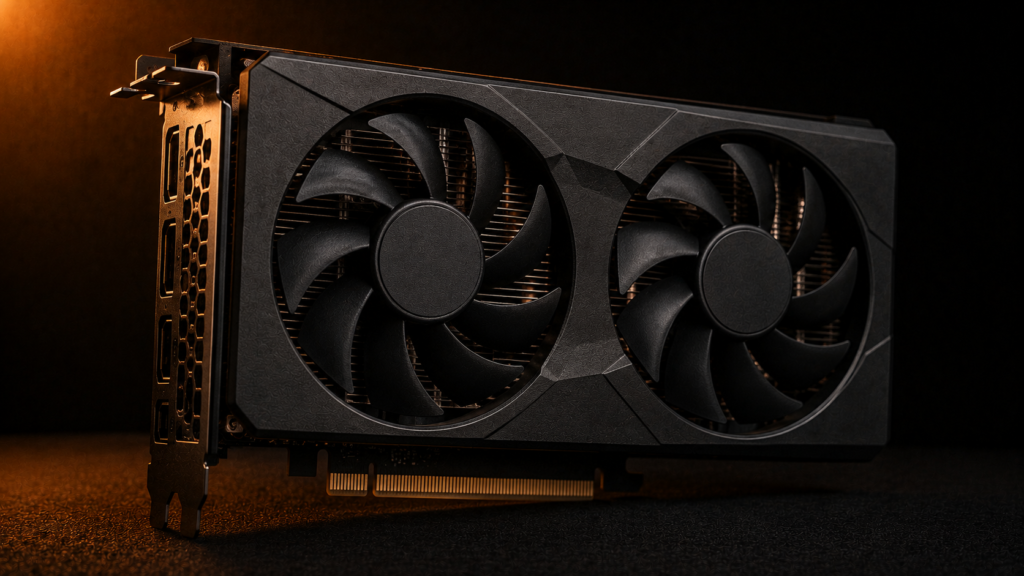
Does It Fit Your Case? Length Clearance and Airflow Math
The listed length of a graphics card usually does not include the space taken up by front intake fans, which most mini-ITX builders add. This overlap is often where throttling problems begin. In our mini-ITX case tests, we found that a case rated for 330mm of GPU clearance actually drops to about 325mm once you install front fans. Every card in this review needs to fit within that space, with enough extra room for air to move around the shroud, not just for the card to fit physically. The length on the spec sheet only tells you if the sff graphics card will go in, but the real clearance around the card, not just in front, determines if it can get enough airflow once installed. We share the exact case clearance and airflow numbers in our mini-ITX case airflow test.
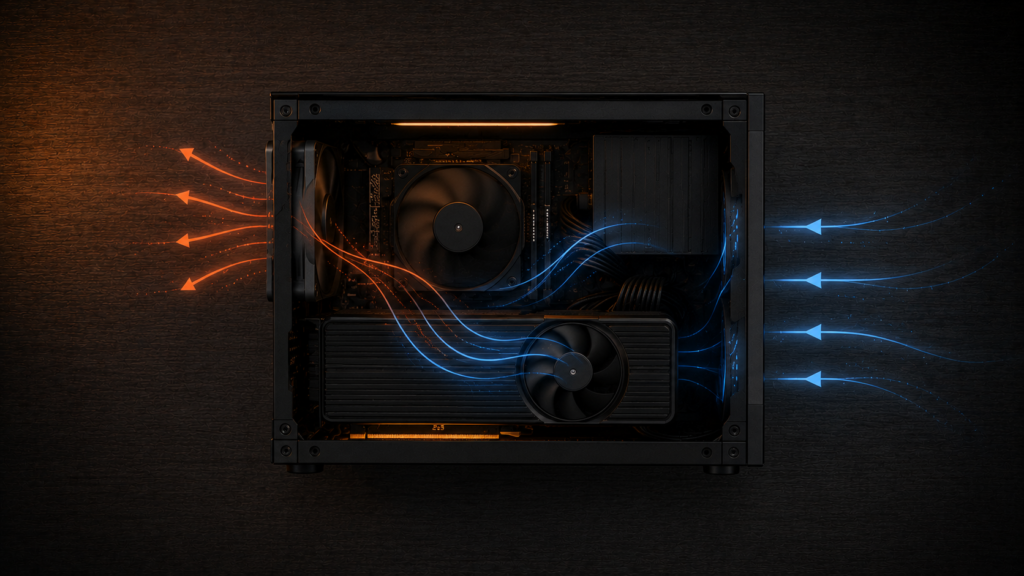
Case Pressure and Fan Configuration
Dust can be kept out by setting up positive case pressure, which causes your intake fans to move more air than your exhaust fans. But if there isn’t a good way for the warm air to escape, it can also trap it around the SFF graphics card. Negative pressure, on the other hand, removes hot air more quickly but draws dust in through any opening, including those that aren’t intended to be air intakes. In our experiments, we discovered that a nearly neutral configuration with balanced intake and exhaust fans prevented both the unpredictable airflow from heavy negative pressure and the heat accumulation from strong positive pressure. In a compact case, this configuration produced the most consistent GPU clock speeds among the four cards.
Vertical Mounting an SFF Graphics Card and Riser Cable Considerations
When you mount a GPU vertically using a riser cable, its position changes compared to the main airflow in your case. Depending on your case, this can make temperatures better or worse over time. Vertical mounting also causes a mechanical problem that horizontal mounting does not. If the riser cable stays bent for a long time, especially if your tower is on an uneven surface, it can create a weak spot. This might cause random frame drops before you notice any clear hardware issues. If your tower is placed under your desk instead of sitting flat, check how much it tilts or vibrates. That stress goes through the riser cable and slot before affecting anything else. We explain how much vibration different mount styles pass on in our breakdown of vibration risks when mounting your case.
Fitting the Rest of Your Setup around it
A GPU’s real-world thermal performance depends on more than the card and the case alone, since the tower’s footprint on your desk affects the airflow and clearance you realistically have day-to-day. In our desk depth breakdown for a mini-ITX tower, we measured precisely how much desk depth a mini-ITX tower requires, including cable clearance, if your build is mounted on the desk itself rather than beneath it.
Structural Execution: What Actually Goes Wrong
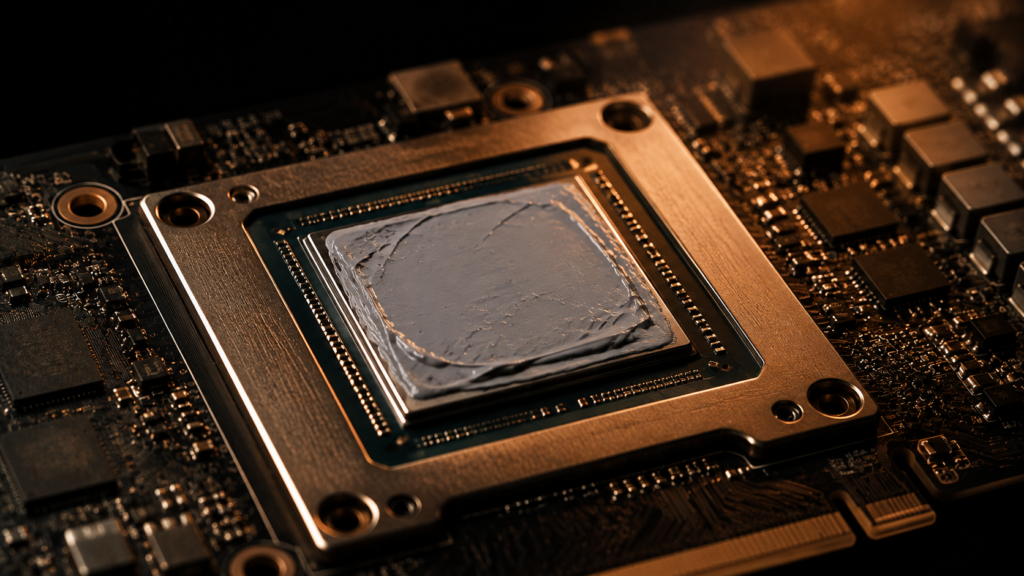
The most common long-term issue isn’t the GPU itself failing; it’s thermal paste and pad degradation happening faster in a cramped case than it would in a full tower, since sustained higher ambient temperatures accelerate the pump-out effect that gradually reduces paste effectiveness. For no other reason than that the paste between the die and cooler has deteriorated, a card that operated flawlessly for the first six months may begin throttling earlier in a session. Instead of waiting for throttling to appear first, it is worthwhile to repaste in a small, hot case every twelve to eighteen months.
Since most monitoring overlays only display core temperature by default, VRM and memory junction temperatures are also neglected. VRM temperatures rise more quickly than people anticipate in a small case with little airflow across the back of the PCB, and a card can throttle from VRM heat well before the core itself approaches its own limit. In the initial sessions following a new build, pay particular attention to VRM and memory junction readings, not just the core, if your monitoring software allows it.
The Bottom Line
Choose the ASUS Dual RTX 4070 if you want strong, consistent performance in a mini-ITX build and don’t want to max out your case’s space. Only if your case is larger than the standard 330mm should you choose the Zotac RTX 4070 Super Trinity, as its additional length may cause issues in tighter builds. Avoid the MSI RTX 4060 Ti Ventus 2X if performance is more important to you than efficiency. If you don’t require high frame rates, the Sapphire Pulse RX 7600 is a good option for the smallest card with respectable performance.


One Comment