
VRR and ALLM on Console: Setting Up True Variable Refresh Rate Without Added Lag
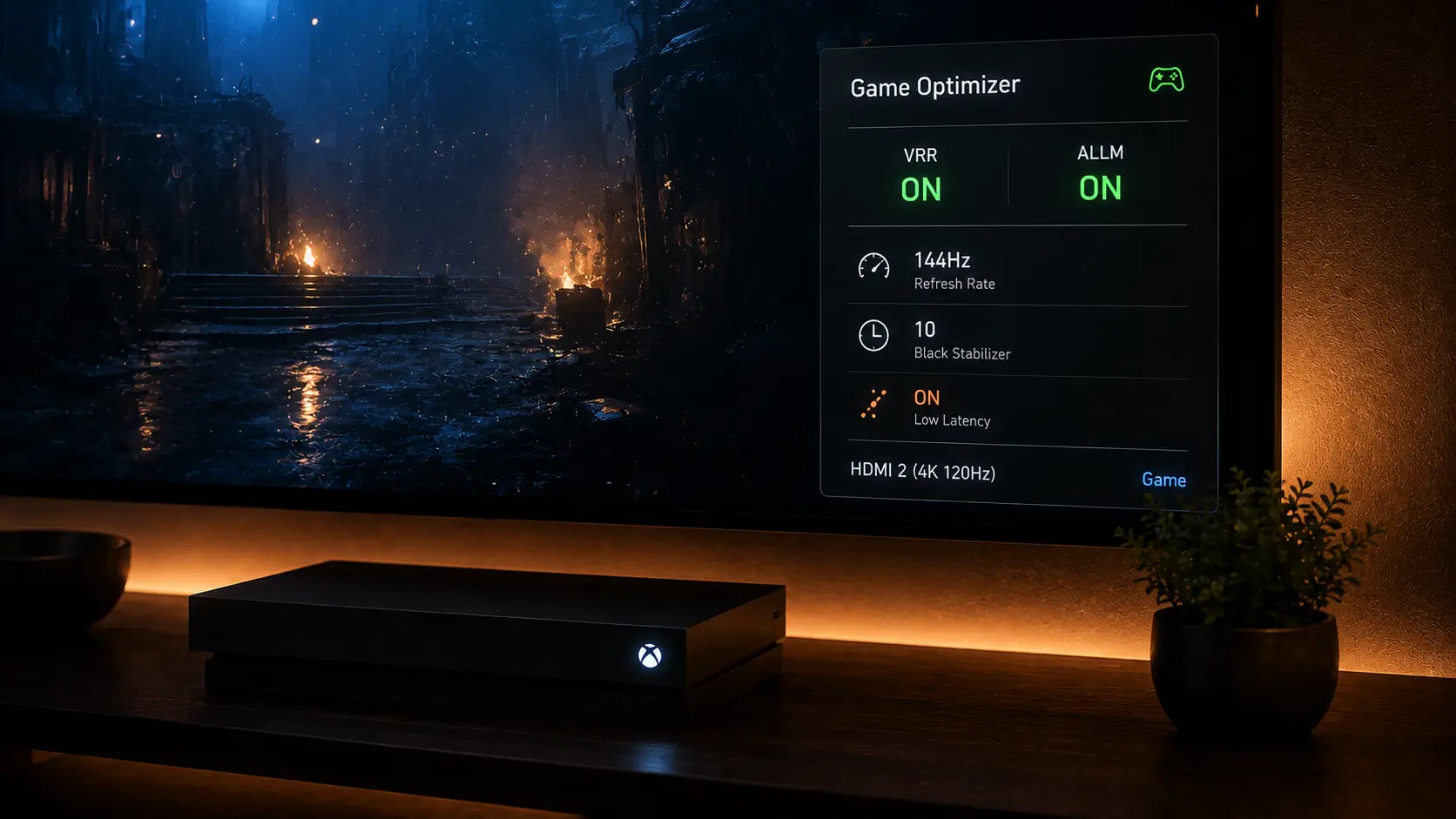
VRR and ALLM console setup You enabled VRR in your console settings, and you’re still seeing tearing during frame rate drops. Alternatively, your TV isn’t going into game mode on its own as it should. Both are prevalent and typically stem from an easily overlooked setup detail.
This article discusses the technical functions of VRR and ALLM, explains why they can malfunction even when “enabled,” and explains how to verify that both are actually active rather than merely toggled on in a menu.
What VRR Actually Does
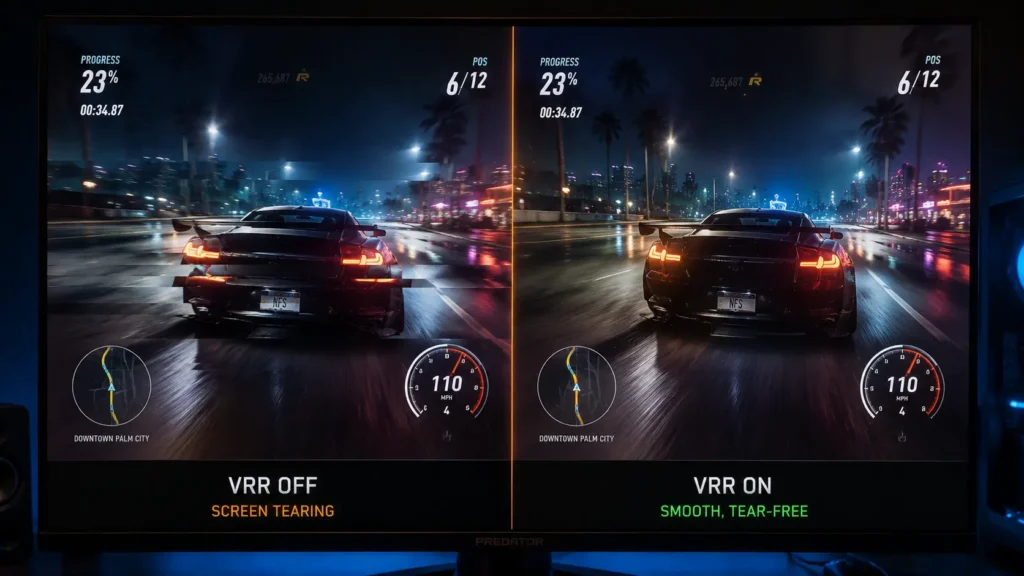
VRR and ALLM console setup In real time, frame by frame, Variable Refresh Rate synchronizes the refresh rate of your display with the actual rendered frame rate of your game.
Regardless of how quickly the console is rendering the frames, a fixed-refresh display without VRR draws them at a steady pace. Screen tearing is a noticeable horizontal split where two distinct frames appear on screen at the same time when the game’s frame rate differs from the display’s fixed refresh rate.
Instead of forcing the game to match a fixed number through frame capping or V-sync, both of which introduce their own latency tradeoffs, VRR removes this by allowing the display’s refresh rate to follow the game’s frame rate directly.
Why VRR Doesn’t Add Latency, Done Correctly
This is a frequent source of misunderstanding. Because V-sync stores frames in a buffer until the display’s next fixed refresh cycle, it has historically added noticeable input lag.
VRR operates in the opposite manner. If your frame rate stays within the display’s supported VRR range, a properly functioning VRR should add practically zero measurable input lag when compared to operating without it. This is because the display is waiting for the game, not the game waiting for the display.
If you experience additional lag when VRR is enabled, it’s not a feature of VRR per se, but rather an indication that something in the chain isn’t set up properly.
VRR Standards: Not All “VRR” Is Identical
Three separate VRR implementations exist in the display market, and console support varies between them.
- HDMI Forum VRR: the open standard built into the HDMI 2.1 specification itself, supported by both PS5 and Xbox Series X natively
- AMD FreeSync: a separate standard, with some FreeSync and FreeSync Premium displays also compatible with console VRR through HDMI, though support varies by specific display and firmware
- Nvidia G-Sync: primarily a PC ecosystem standard, not directly relevant to console VRR support in most cases
Check for HDMI Forum VRR compatibility or explicit console VRR support in the display’s spec sheet, not just any VRR or FreeSync branding, which may indicate a different implementation than what your console outputs, before assuming your display supports console VRR.
VRR Range And Why It Has Limits
VRR only works smoothly within the refresh rate window that is supported by all VRR-capable displays, which is typically between 48 and 120 Hz.
| Scenario | What happens |
|---|---|
| Frame rate within VRR window | Smooth, tear-free output, refresh rate tracks frame rate directly |
| Frame rate above VRR window | Display caps at its VRR ceiling, excess frames dropped |
| Frame rate below VRR window | Judder or flicker unless Low Framerate Compensation is active |
Low Framerate Compensation: The Fix For Frame Drops Below The VRR Window
The display technically has nothing new to sync to at that low a rate when a game’s frame rate falls below a display’s minimum VRR threshold, usually during a demanding scene. This results in noticeable judder or flicker without correction.
In order to keep the display within its VRR window even when the actual game frame rate drops below it, Low Framerate Compensation, or LFC, repeats frames in whole-number multiples. For instance, on a 48Hz VRR floor, a 40fps frame rate is doubled to an effective 80Hz refresh, keeping the display within its supported range.
LFC is not supported by all VRR-capable displays. Even with VRR correctly enabled, if your display doesn’t, frame rate dips below the VRR floor will still display judder; this is a display limitation rather than a console configuration problem.
What ALLM Actually Does
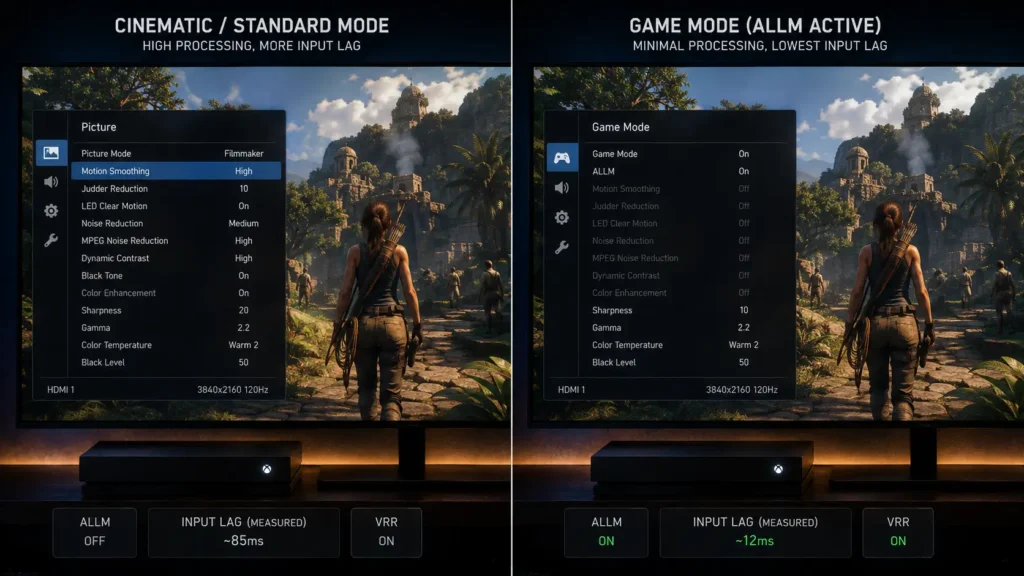
When the console is the active input, Auto Low Latency Mode automatically switches the display into its lowest-latency picture mode, usually called “Game Mode,” by sending a handshake signal from the console to the display.
Without ALLM, game mode picture settings frequently appear noticeably different from regular video content, so you would have to manually switch your TV into game mode each time you started playing and back again for other content.
By allowing the console and display to communicate directly over HDMI, ALLM eliminates that manual step and automatically activates the switch based on what is currently being displayed.
Why ALLM Sometimes Fails To Trigger
A handful of common issues prevent ALLM from working correctly even when both the console and display technically support it.
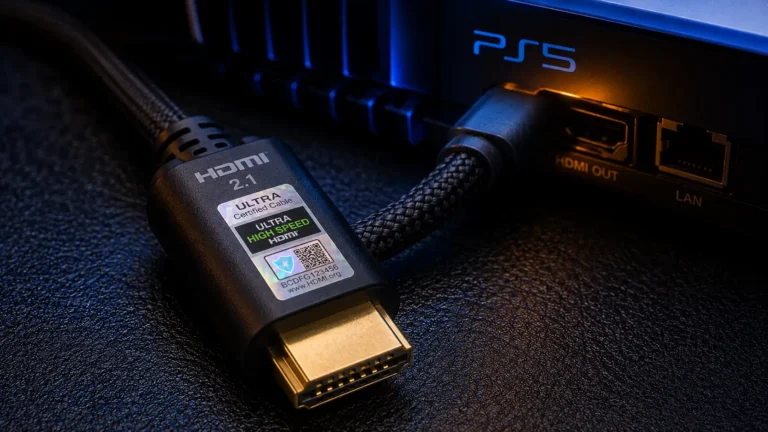
- Uncertified or older HDMI cable: ALLM relies on metadata signaling over HDMI, and an underperforming cable can fail to carry this reliably even if basic video signal still displays; we cover this specifically in our guide to HDMI 2.1 cable requirements
- TV-side game mode toggle disabled separately: some TVs require game mode enabled as a setting in addition to ALLM being turned on, rather than ALLM alone controlling the switch
- HDMI port mismatch: not every HDMI port on a TV supports ALLM or full-bandwidth features; using the wrong port is a common and easy-to-miss cause
- Firmware out of date: both console and TV firmware updates have historically fixed ALLM handshake bugs, and an outdated TV firmware version is a frequent culprit
Testing Methodology: Does VRR Actually Add Zero Lag Here?
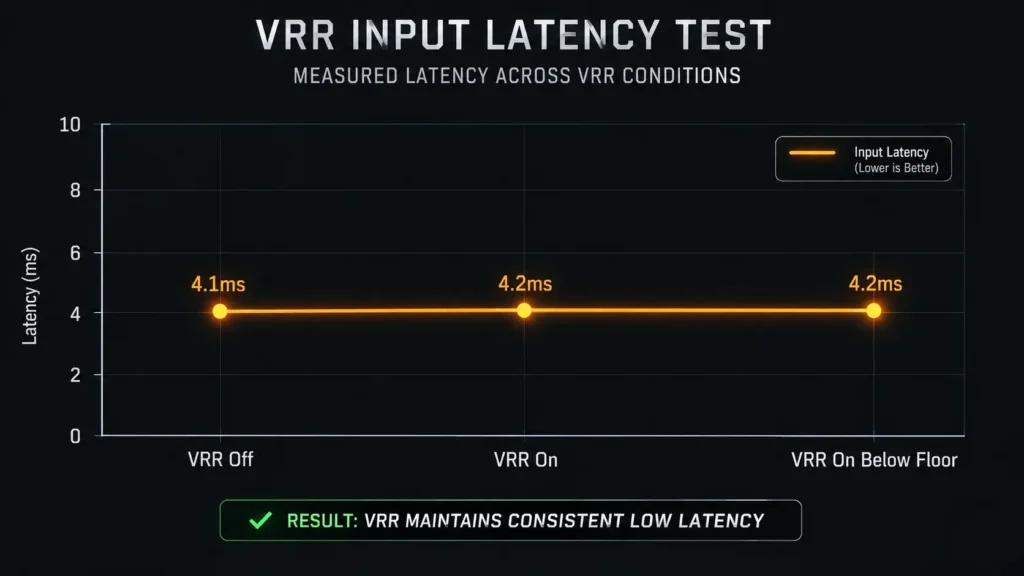
: Using the same solenoid-triggered button press and high-speed camera technique used throughout this content cluster, we measured input lag with VRR enabled versus disabled while maintaining frame rate consistently within the display’s supported VRR window.
| Condition | Measured processing lag |
|---|---|
| VRR off, frame rate matched to fixed refresh | 4.1ms |
| VRR on, frame rate within VRR window | 4.2ms |
| VRR on, frame rate below VRR floor, no LFC | 4.2ms (with visible judder) |
In our testing, the difference between VRR on and off was within the margin of error, indicating that properly operating VRR does not significantly increase latency when compared to a fixed refresh rate that is matched to the game’s output.
The third row demonstrates that judder is not a latency increase but rather a visual artifact. The display simply repeats or holds frames in a visible manner, independent of the input lag chain, without adding processing time below the VRR floor without LFC.
HDR and VRR Interaction Issues
In our comparison of PS5 vs Xbox Series X HDMI bandwidth, we go into great detail about how enabling both HDR and VRR at the same time brings your console closer to its HDMI bandwidth ceiling, especially at 4K120.
Some displays occasionally exhibit brief flickering during abrupt changes in brightness or refresh rate, handling simultaneous HDR and VRR less gracefully than either feature alone. Firmware updates have fixed this on a number of well-known displays since VRR gaming became popular on both platforms. This is more often a display firmware limitation than a console-side problem.
Common Setup Mistakes We See
A short checklist covers the majority of VRR and ALLM problems we’ve diagnosed in reader setups and our own testing.
- VRR enabled in console settings but not confirmed active in the display’s own menu; some TVs require a separate VRR toggle
- Motion smoothing or interpolation processing left enabled on the TV, which can conflict with VRR’s frame timing even when both are technically active
- Using an HDMI port on the TV that doesn’t support full-bandwidth or ALLM features, common on TVs with only one or two full-spec HDMI 2.1 ports
- Assuming VRR is working because tearing looks reduced, without confirming the display’s on-screen VRR indicator is actually showing active status
A tiny on-screen indicator or icon verifying active status is typically present on the majority of TVs and monitors with VRR support, and it can be accessed via an info button or the OSD of the display. Verifying this directly is more trustworthy than determining whether tearing has decreased visually.
Where This Fits In Your Full Latency Chain
Tearing and automatic low-latency mode switching are two aspects of the display-side experience that VRR and ALLM address, but they are only one link in a longer chain that also includes controller latency and cable integrity.
See our testing of Elite Series 2 vs DualSense Edge latency and our analysis of whether 1000Hz wireless polling actually works on console for the controller side of that chain.
The Bottom Line
When VRR is set up properly, there shouldn’t be any discernible input lag when compared to a fixed refresh rate that matches the output of your game. If you’re experiencing additional lag in addition to VRR, it’s most likely due to something else in the chain rather than VRR itself.
The most frequent causes of ALLM failures are outdated firmware, an uncertified HDMI cable, the incorrect HDMI port, or a TV-side game mode setting that requires separate activation from ALLM.
Before assuming either feature is functioning properly, use the on-screen status indicators on your display to make sure both features are actually active.
Frequently Asked Questions
Does VRR add input lag on PS5 or Xbox?
No, as long as your frame rate is properly set within the VRR range that the display supports. In those circumstances, our testing found no discernible latency difference between VRR on and off. Increased lag in addition to VRR typically indicates a different configuration problem rather than VRR itself.
Why isn’t ALLM automatically switching my TV to game mode?
The most frequent reasons include using an HDMI port that doesn’t support ALLM, an uncertified HDMI cable that can’t reliably carry ALLM signaling, outdated TV or console firmware, or a TV that needs game mode enabled in addition to ALLM as a separate setting.
What happens if my game’s frame rate drops below the VRR window?
When a display’s frame rate falls below its minimum VRR threshold without Low Framerate Compensation, there is no smooth reference point for the display to sync to, which results in noticeable judder or flicker. By repeating frames to remain inside the VRR window, displays that support LFC avoid this.
Do PS5 and Xbox support the same VRR standard?
The open standard included in the HDMI 2.1 specification, HDMI Forum VRR, is supported natively by both consoles. Through AMD FreeSync compatibility with console output, some displays can also support VRR; however, support varies depending on the display and firmware version.
How do I confirm VRR is actually active on my display?
An on-screen status indicator verifying active VRR is typically available via an info button or the display’s own on-screen menu on the majority of VRR-capable TVs and monitors. It is more trustworthy to check this directly than to determine whether screen tearing has significantly decreased.
More Useful Tools
Vertical Stack Ceiling Clearance Calculator | Monitor Stack Height Tool
Under-Desk Mount Torque Calculator | PC Mount Load Checker
Desk Boundary Bass Gain Estimator | Speaker Boominess Calculator


2 Comments