
GTA 6 FPS Calculator: Estimate Your PC’s Performance
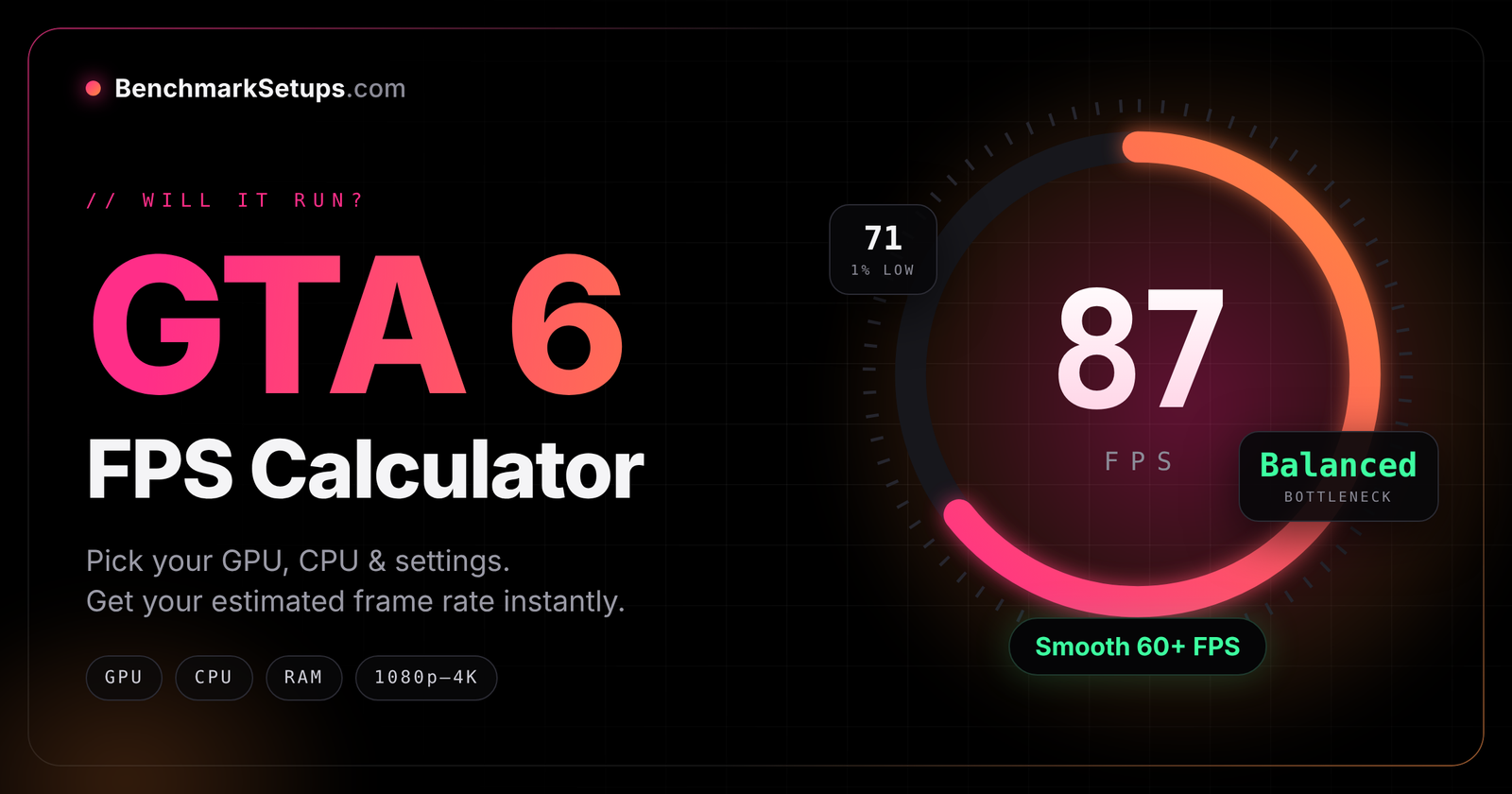
GTA 6 FPS calculator
Estimate only. No PC version yet.Estimates come from a simple model, not real GTA 6 benchmarks. Not affiliated with Rockstar Games or Take-Two.
How this estimate is calculated
1. We take your GPU’s PassMark G3D score and compare it with a reference card, the GeForce RTX 4070.
2. We assume the RTX 4070 runs GTA 6 at about 60 FPS at 1080p on High. This is an assumption, not a measurement. Rockstar has not announced a PC version or any PC requirements.
3. We scale for resolution with the pixel ratio to the power of -0.8. 1440p has 1.78x the pixels of 1080p, ultrawide 3440×1440 has 2.39x, and 4K has 4x.
4. The CPU sets a ceiling. We assume four CPU groups with ceilings of about 55, 90, 140 and 200 FPS. These ceilings are assumptions too. The GPU and CPU numbers are blended, so the weaker part pulls the result down.
5. The range shown is the estimate plus or minus 25 percent.
Formula: GPU FPS = 60 x (your score / 26,962) x resolution factor, then FPS = blend of GPU FPS and CPU ceiling.
PassMark scores change over time. Real results will depend on drivers, game patches, RAM and the final PC port. We will replace the assumptions with real benchmarks when they exist.
Your estimated GTA 6 performance
Estimate only. GTA 6 has no PC version yet, so real performance may differ.
What Is the GTA 6 FPS Calculator?
The GTA 6 FPS Calculator estimates how many frames per second your PC could reach in Grand Theft Auto VI, based on your hardware and graphics settings. Choose your GPU, CPU and RAM, pick a resolution and preset, then press Estimate FPS to see your expected frame rate, 1% lows and likely bottleneck. It is built for gamers deciding whether to upgrade, tweak settings, or simply check if their current PC is ready.
How to Use It
- Select your graphics card and processor from the lists.
- Choose your RAM size.
- Set your target resolution (1080p, 1440p, ultrawide or 4K) and graphics preset.
- Optionally turn on upscaling (DLSS, FSR or XeSS), ray tracing or frame generation, and pick your install drive.
- Press Estimate FPS. A popup shows your expected FPS, a realistic range, 1% lows and tips.
Understanding Your Result
The big number is your average FPS. What it feels like in play:
| Average FPS | What to expect |
|---|---|
| Under 30 | Struggling to unplayable; lower settings |
| 30–45 | Playable, console-class experience |
| 45–60 | Pretty smooth |
| 60–90 | Smooth 60+ gameplay |
| 90–144 | High-refresh ready |
| 144+ | Silky, esports-level smoothness |
Three extra numbers help you read it:
- 1% Low: the FPS during your slowest moments. The closer it is to your average, the smoother the game feels.
- Bottleneck: which part limits you: GPU, CPU or VRAM. Upgrading anything else will not raise your FPS much.
- VRAM: shows OK, Tight or Short for your chosen resolution and preset. Short means stutters and big FPS drops.
Quick Tips to Get More FPS
- Turn on upscaling. DLSS, FSR or XeSS Quality is usually the biggest free boost.
- Drop the preset one step. Ultra to High often gains a lot of FPS for little visible loss.
- Skip ray tracing unless your GPU has headroom to spare.
- Use 16 GB of RAM or more. 8 GB can cause stutter in a large open world.
- Install on an SSD. An HDD can cause texture pop-in and streaming hitches.
- Use frame generation only from a solid base. It works best when you already get about 50+ FPS without it.
How Accurate Is It?
These are estimates from a performance model, not results from real in-game benchmarks. Real FPS will vary with drivers, game patches, cooling and background apps. Treat the number as a guide for planning, and expect about 10% either way. We will refine the model as real GTA 6 benchmark data becomes available.
BenchmarkSetups.com is not affiliated with Rockstar Games or Take-Two Interactive.
For More Information Click Here :
