M.2 SSD Explained: Everything You Actually Need to Know Before Buying One
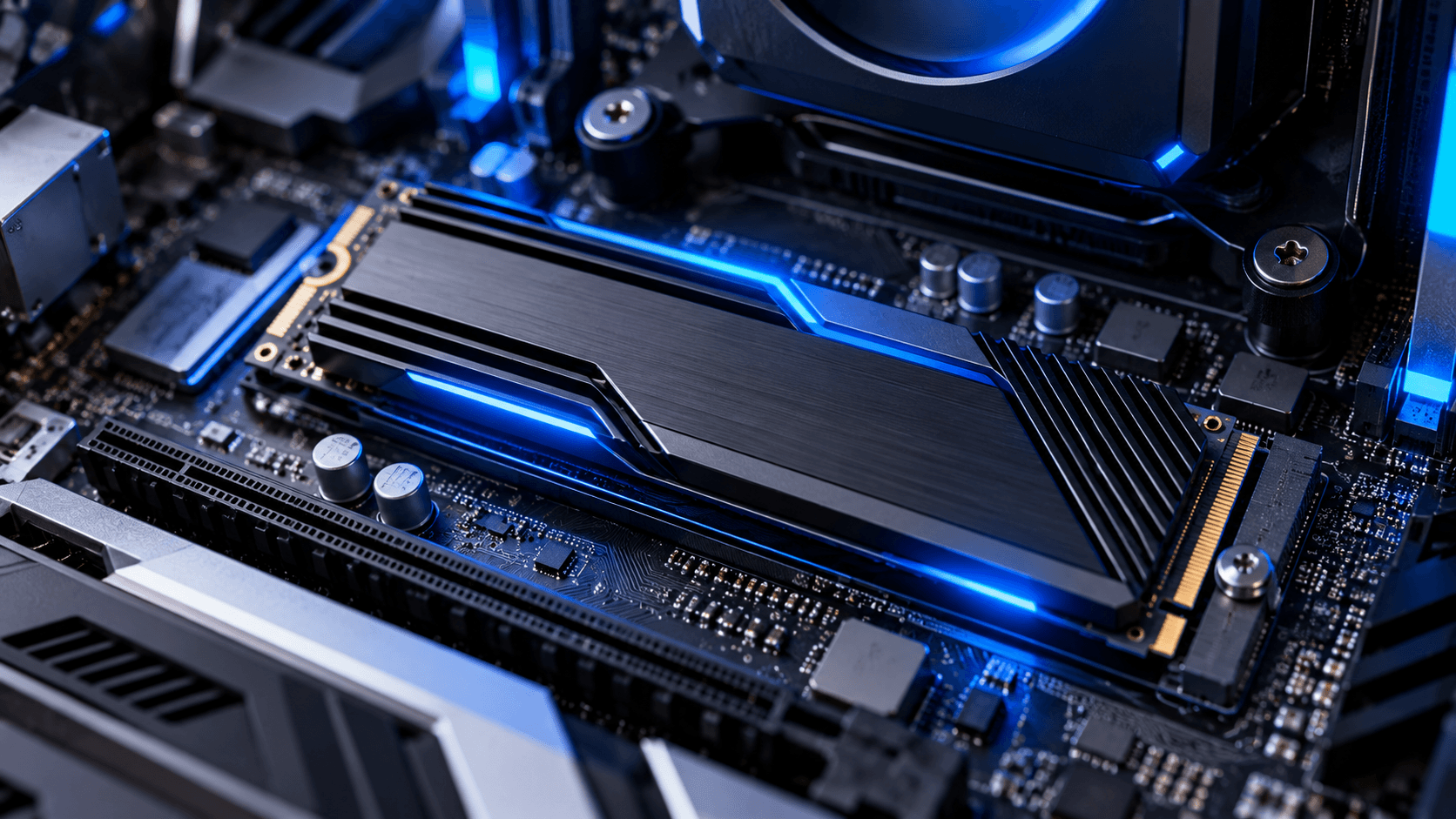
If you have shopped for storage in the last few years, you have probably noticed the small rectangular stick shaped drive that has mostly replaced the traditional hard drive shape inside modern PCs and laptops. That is an M.2 SSD, and despite how common the term has become, a lot of buyers still find the naming and specifications genuinely confusing. Here is a clear, practical breakdown of what M.2 actually means, what to check before buying one, and the mistakes that trip people up most often.(M.2 SSD)
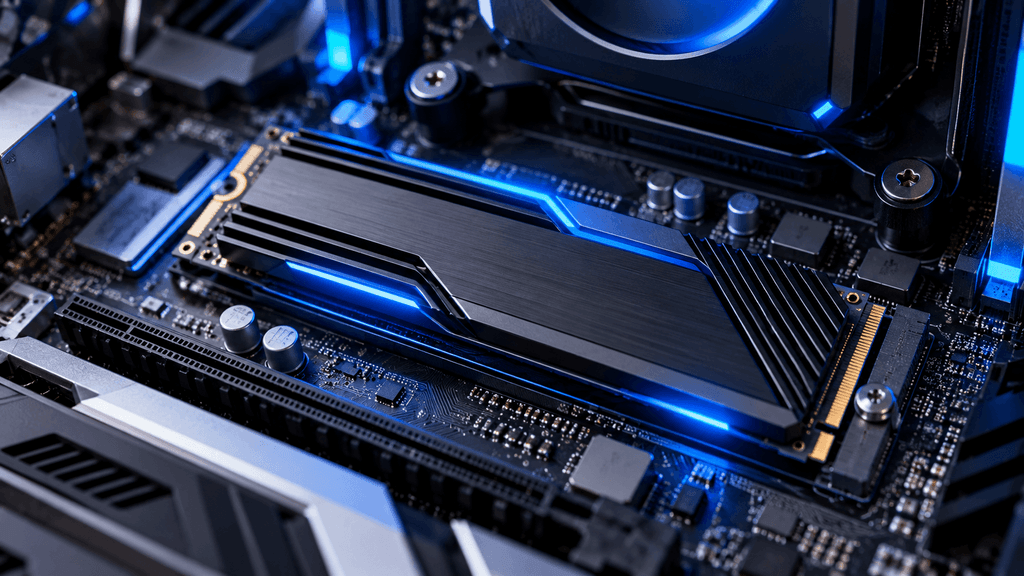
What M.2 actually refers to
This is the single most common point of confusion, so it is worth clearing up first. M.2 is a physical connector and form factor, not a technology or speed standard by itself. It describes the small, slim, stick shaped size and slot type a drive uses, similar to how USB describes a connector shape rather than a specific speed on its own.
This matters because not every M.2 drive performs the same way, even though they all share the same basic physical shape. Two drives can both be labeled M.2 and look nearly identical, while performing very differently underneath, depending on the actual technology running through that connector.(M.2 SSD)
SATA versus NVMe: the difference that actually matters most
This is the detail that causes the most confusion and the most buying mistakes. M.2 drives come in two fundamentally different types.(M.2 SSD)
M.2 SATA drives use the same older data transfer standard as traditional hard drives and older solid state drives, just squeezed into the smaller M.2 physical shape. These drives are meaningfully faster than a traditional spinning hard drive, but they are capped at roughly the same maximum speed as older style SATA solid state drives, since the connector shape changed but the underlying data pathway did not.(M.2 SSD)
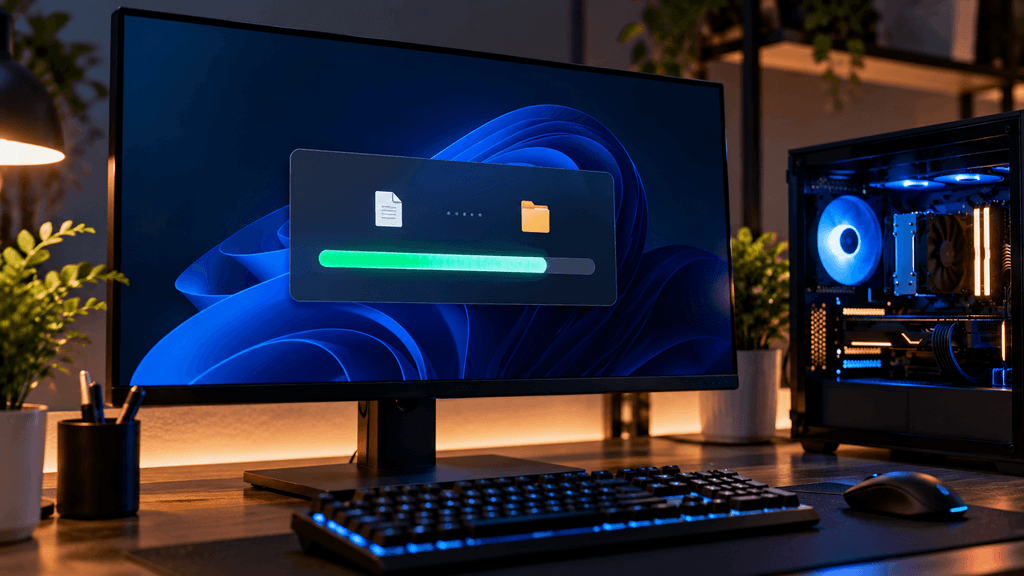
M.2 NVMe drives use a completely different, much faster data pathway that connects more directly to your system, bypassing the older SATA bottleneck entirely. This is where the dramatic, often talked about speed improvements of modern SSDs actually come from. An NVMe drive can be several times faster than a SATA drive of either type, despite both potentially sharing the exact same physical M.2 shape and slot.(M.2 SSD)
The practical takeaway here is simple but important. Always check whether a specific M.2 drive and the specific M.2 slot on your motherboard or laptop both support NVMe, rather than assuming the M.2 label alone guarantees the faster option. Plugging an NVMe drive into a slot that only supports SATA, or vice versa, generally will not work at all or will not deliver the performance you expected, depending on the specific hardware involved.
Understanding PCIe generations
NVMe drives communicate using PCIe, the same general connection technology graphics cards use, and PCIe comes in different generations, commonly labeled Gen3, Gen4, and now Gen5, each roughly doubling the maximum theoretical speed of the previous generation.(M.2 SSD)
A drive’s generation needs to be considered alongside your motherboard’s supported generation together, not separately. A Gen4 drive installed in a Gen3 only motherboard slot will still work, but it will only run at the slower Gen3 speed the slot actually supports, not its own full rated speed. Before buying a faster, more expensive drive generation, confirm your specific motherboard or laptop actually supports that same generation, or you may simply be paying for speed you cannot access.(M.2 SSD)
Does the length and key type actually matter
M.2 drives also come in different physical lengths, with the most common being labeled 2280, referring to 22mm wide and 80mm long, which fits the vast majority of modern desktop motherboards and many laptops. Shorter lengths exist and are more common in smaller laptops and compact devices specifically, so checking your specific device’s supported length before buying, particularly for laptop upgrades, is a worthwhile step that is easy to overlook.(M.2 SSD)
M.2 slots also use different keying notches, most commonly labeled B key, M key, or both together as B+M key, which physically determine which drives can be inserted into a given slot. Most modern NVMe drives use M key specifically. This detail rarely causes problems with current hardware, but it is worth a quick check if you are working with an older or unusual motherboard.(M.2 SSD)
Heat is a real consideration, especially with faster drives
Faster NVMe drives, particularly newer Gen4 and Gen5 models, can run meaningfully hotter than older SATA drives under sustained heavy use, to the point where excessive heat can cause the drive to automatically slow itself down to protect itself, a process called thermal throttling. Many motherboards now include a built in heatsink covering the M.2 slot specifically to address this, and many higher end drives also ship with their own dedicated heatsink attached.(M.2 SSD)
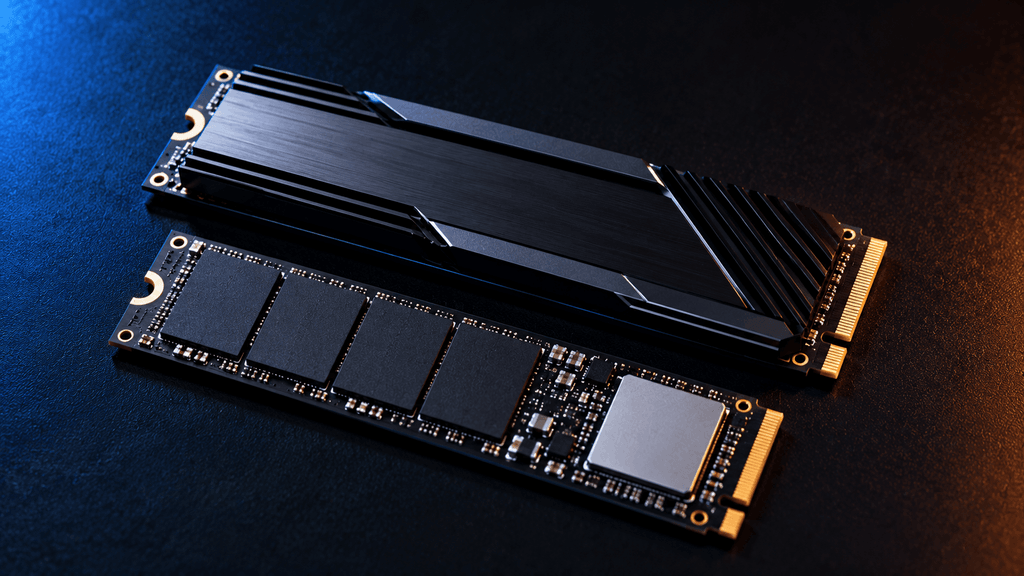
If your motherboard does not include a built in M.2 heatsink and you are installing a fast, demanding drive, particularly for sustained heavy workloads like large file transfers or video editing, a separate aftermarket heatsink is a cheap, worthwhile addition that can meaningfully help maintain consistent performance.
How much storage do you actually need
This depends heavily on how you use your PC, but a few general guidelines help. For a primary drive handling your operating system and most frequently used applications, 1TB has become a comfortable, common starting point for most users, especially given how large modern games and software installations have grown. If you work with large files regularly, such as video editing or managing an extensive game library, 2TB or more avoids the frustration of constantly managing space and uninstalling things to make room for new content.
It is also worth noting that, given the ongoing global memory and storage shortage affecting prices broadly this year, buying a bit more capacity than you think you currently need can be a reasonable hedge against needing to buy additional storage later at a higher price.
Common mistakes to actually avoid
Assuming all M.2 drives are automatically fast. As covered above, the M.2 shape alone does not guarantee NVMe speeds, and checking the specific drive’s actual interface type before buying is essential, not optional.
Buying a drive generation your motherboard cannot fully use. A Gen5 drive in a Gen3 slot will not deliver Gen5 performance, so matching your drive’s generation to what your specific motherboard actually supports avoids paying for speed you cannot access.
Ignoring available M.2 slots on your specific motherboard. Not every motherboard has the same number of M.2 slots, and some slots share bandwidth with other components like certain SATA ports or expansion slots, meaning using one can disable another. Checking your specific motherboard’s manual before planning a multi drive build avoids an unpleasant surprise during installation.
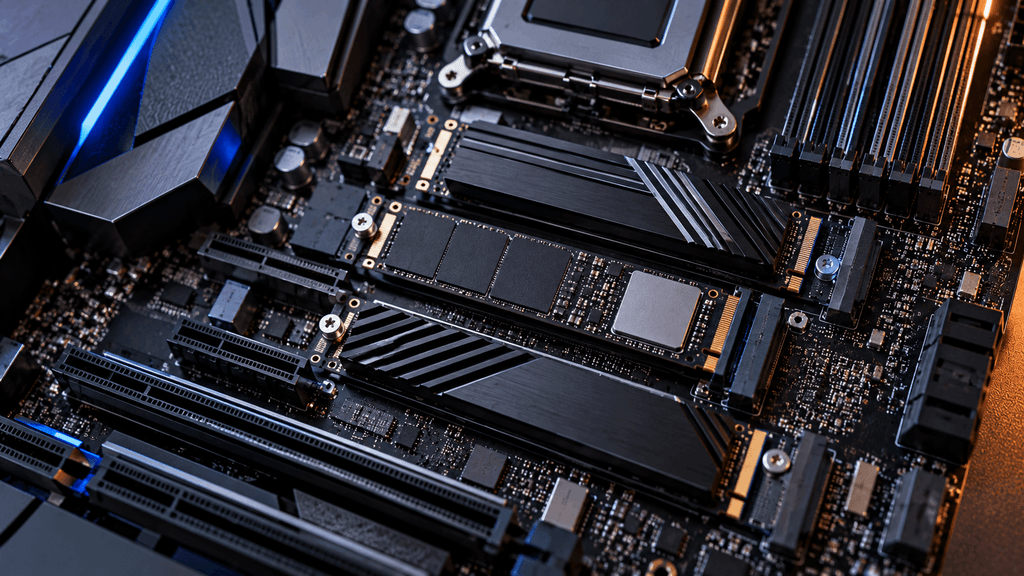
Overlooking heat management on fast drives. As covered above, a missing heatsink on a demanding NVMe drive can lead to real, measurable performance loss under sustained use, not just a theoretical concern.
The bottom line on M.2 SSDs
M.2 describes a physical shape, not a guaranteed speed, and understanding that distinction is the single most useful thing to take away before buying one. Check whether a drive and your specific slot both support NVMe rather than just SATA, confirm the PCIe generation your motherboard actually supports before paying extra for a newer drive generation, and do not overlook heat management on faster, more demanding drives. Get those details right, and an M.2 SSD upgrade becomes one of the most noticeably impactful upgrades you can make to an existing PC.
Are you upgrading to your first NVMe drive, or adding additional M.2 storage to an existing build? Let us know in the comments.
FAQ: M.2 SSD
Is every M.2 SSD an NVMe drive?
No. M.2 is just the physical shape and connector type. Some M.2 drives use the older SATA interface and run at SATA speeds, while others use NVMe, which is significantly faster. Always check the specific interface before buying, since the M.2 label alone does not guarantee NVMe speeds.
Can I put an NVMe drive in any M.2 slot?
Not always. The slot itself needs to support NVMe, not just the M.2 physical shape. Some motherboards, especially older ones, have M.2 slots that only support SATA drives, so checking your specific motherboard’s manual before buying is important.
Does a Gen5 M.2 SSD work in a Gen4 motherboard?
It will generally still work, but it will only run at the Gen4 speed the slot supports, not its own faster Gen5 rated speed. Matching the drive’s generation to what your motherboard actually supports avoids paying for performance you cannot access.
Do M.2 SSDs need a heatsink?
Many motherboards now include a built in heatsink over the M.2 slot, which is usually enough for most use. For faster Gen4 or Gen5 drives under sustained heavy workloads, an additional heatsink can help prevent the drive from slowing itself down due to heat.
How do I know what length M.2 SSD my laptop or motherboard supports?
The most common length is labeled 2280, which fits most desktop motherboards and many laptops. Checking your specific device’s manual or specifications page before buying is the most reliable way to confirm, especially for smaller laptops that may use shorter drives.
Is it worth paying more for a Gen5 M.2 SSD over Gen4?
For most everyday use, including gaming and general tasks, a quality Gen4 drive offers excellent performance at a lower price and with less heat to manage. Gen5 is mainly worth the extra cost for large file transfers or professional work involving very large files regularly.
Can I use multiple M.2 SSDs in the same motherboard?
Many motherboards support multiple M.2 slots, but some share bandwidth with other components like SATA ports or expansion slots, meaning using one slot can disable another. Checking your specific motherboard’s manual before planning a multi drive build helps avoid this issue.
More Useful Tools
Vertical Stack Ceiling Clearance Calculator | Monitor Stack Height Tool
Under-Desk Mount Torque Calculator | PC Mount Load Checker
Desk Boundary Bass Gain Estimator | Speaker Boominess Calculator